
How to Duplicate WordPress Page Free Guide 2026
How to Duplicate WordPress Page (The Easy Way)
Learning how to duplicate WordPress Page is one of the most useful little tricks you can learn if you build or manage websites regularly. Instead of rebuilding layouts, copying content, or recreating design sections from scratch, you can clone an existing page in seconds and use it as a template.
This is especially helpful when you’re creating service pages, landing pages, location pages, or reusing a layout across your site.
In this guide, you’ll learn the exact process shown in our video walkthrough using a free plugin that makes duplication instant. Creating WordPress changes is simple but can also come with some caveats, you need to be thinking about how each new page plays a role on your sitemap, if it needs to be a page at all or maybe a post or an event instead, and if this page is going to be an evergreen page or something that is more seasonal. Lastly, new pages can impact SEO, so again think deeply about this page and if it will be updated or just a one-off. More on that from Google here:
A sitemap is a file where you provide information about the pages, videos, and other files on your site, and the relationships between them. Search engines like Google read this file to crawl your site more efficiently. A sitemap tells search engines which pages and files you think are important in your site, and also provides valuable information about these files. For example, when the page was last updated and any alternate language versions of the page.
Why You Should Duplicate Pages Instead of Rebuilding Them
Before we get into How to Duplicate WordPress Page, here’s why this matters:
- Reuse proven layouts
- Keep design consistent across pages
- Save 10–30 minutes per page
- Avoid formatting mistakes
- Create template pages for future use
If you’re using builders like Elementor, Gutenberg, WPBakery, or any theme builder, this method works perfectly.
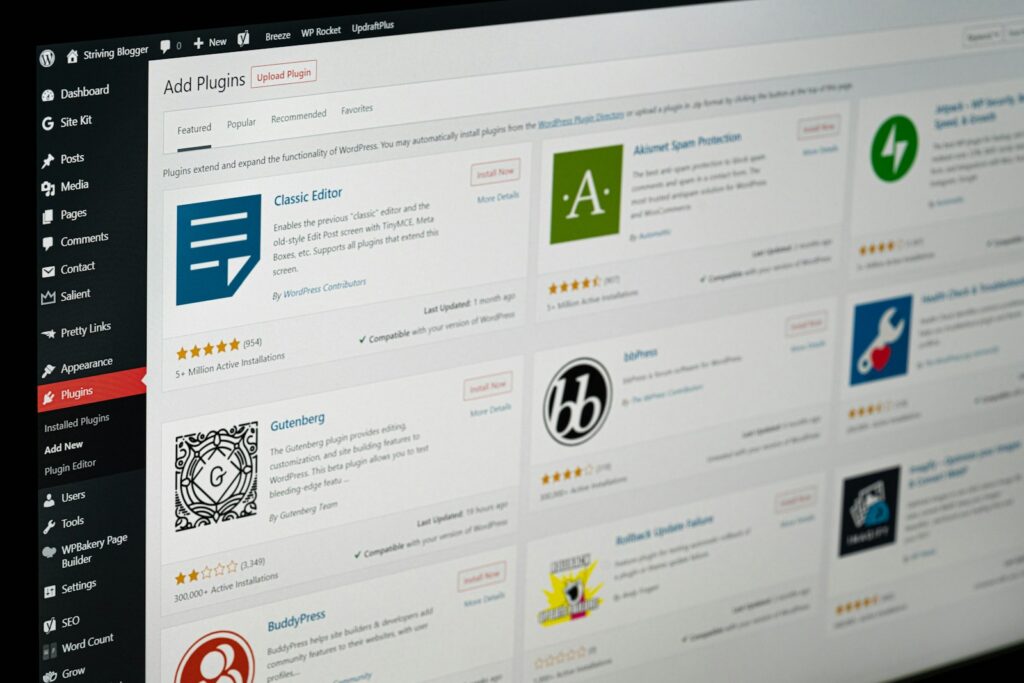
Step 1: Install the “Duplicate Page” Plugin
The easiest way to handle How to Duplicate WordPress Page is with a plugin called Duplicate Page.
From your WordPress dashboard:
- Go to Plugins → Add New
- Search for “Duplicate Page”
- Click Install
- Click Activate
That’s it. No configuration needed.
Step 2: Go to Your Pages Section
Now that the plugin is active:
- Navigate to Pages → All Pages
- Find the page you want to copy
You don’t need to open the page.
Step 3: Duplicate the Page in One Click
This is where the magic happens in How to Duplicate WordPress Page.
- Hover over the page title
- You’ll see a new option: Duplicate This
- Click it
WordPress will instantly create a cloned version of that page.
Step 4: Rename and Edit the New Page
After duplicating:
- Click into the new page
- Change the title
- Update the content as needed
- Hit Publish
You now have a brand-new page built from a proven layout in under a minute.
Where This Is Extremely Useful
Learning How to Duplicate WordPress Page is a game changer when you are creating:
- Location pages (City 1, City 2, City 3)
- Service pages with similar structure
- Landing pages for ads
- Blog post templates
- Product or category layouts
- Client site builds where structure repeats
Instead of “designing,” you’re simply editing.
Common Mistakes to Avoid
When using this method:
- Don’t forget to change the page title and URL slug
- Update internal links that may still point to the original page
- Replace images and metadata if needed
- Check SEO title and description before publishing
Final Thoughts
Once you understand How to Duplicate WordPress Page, you’ll never manually rebuild pages again. This is one of those small WordPress tricks that saves hours over time and keeps your site structure clean and consistent.
If you’re building multiple pages that follow the same layout, this should be your default workflow. Watch our free guide on YouTube for a step-by-step walkthrough!
If you’d rather the experts handle all of this for you, simply select a WordPress support plan here.